Claude Desktop Setup
Note (October 25, 2025): Custom connectors currently require a Claude Pro or Team subscription. Claude provides the best AI experience for professional financial analysis.
Plugin URL
https://api.aevorex.com/api/v1/mcp?apikey=demoImportant: You can only connect within the desktop app. After pairing, it works inside the web interface too.
Step-by-step Guide
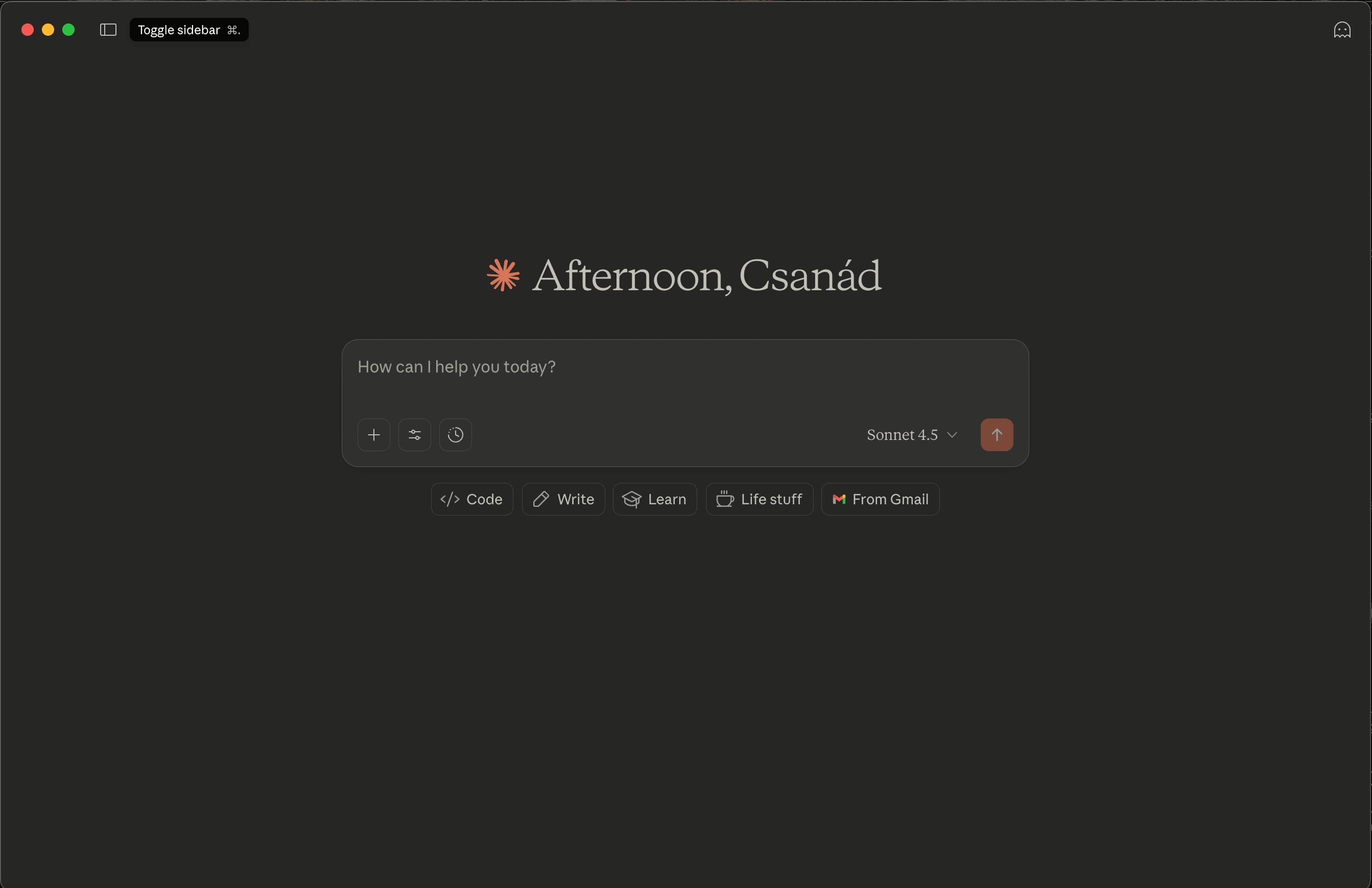
Step 1: Open Claude Desktop
Launch the Claude Desktop app to access the main interface.
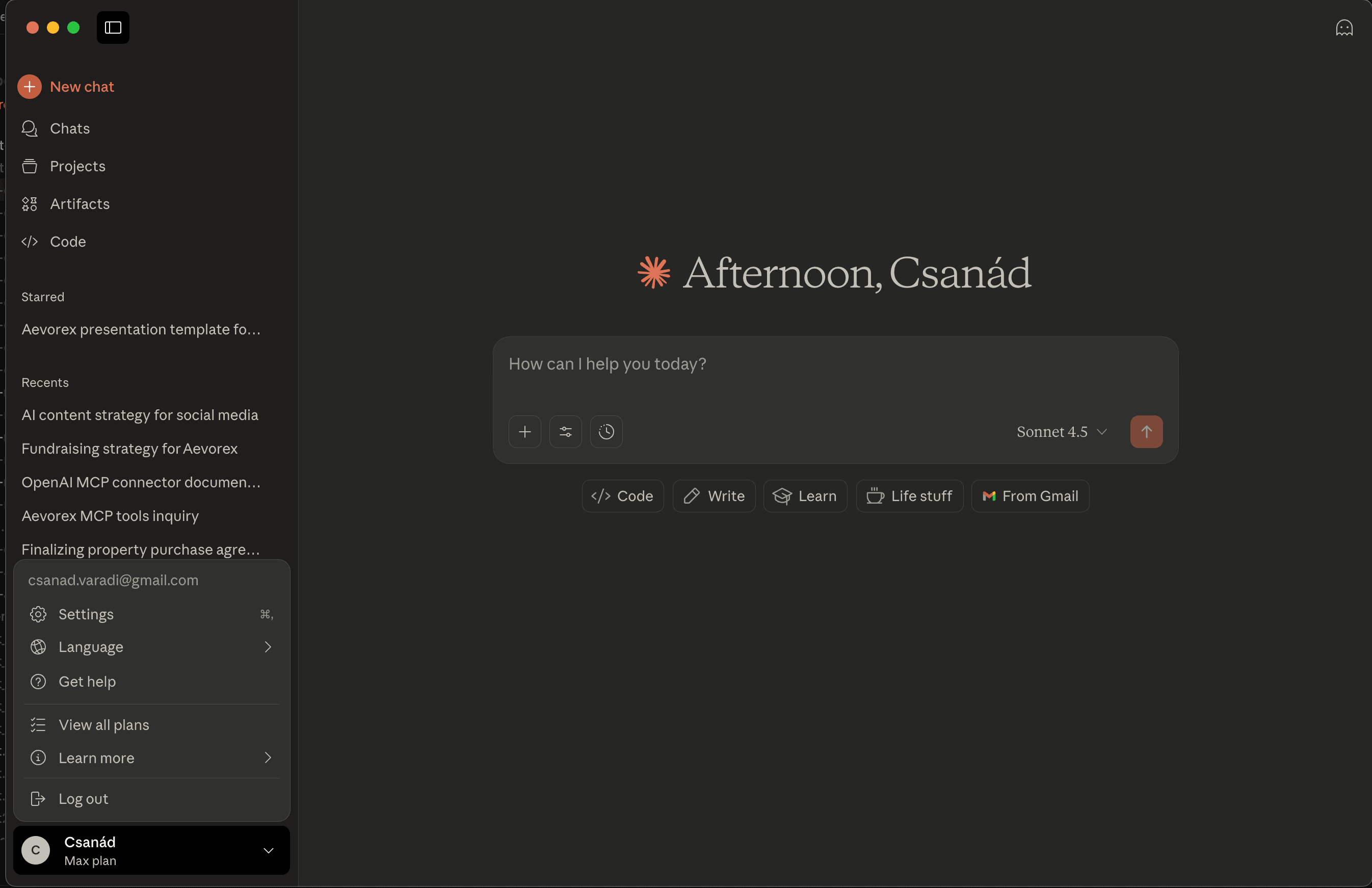
Step 2: Access Settings
Navigate to the sidebar, open your profile, and find Connectors.
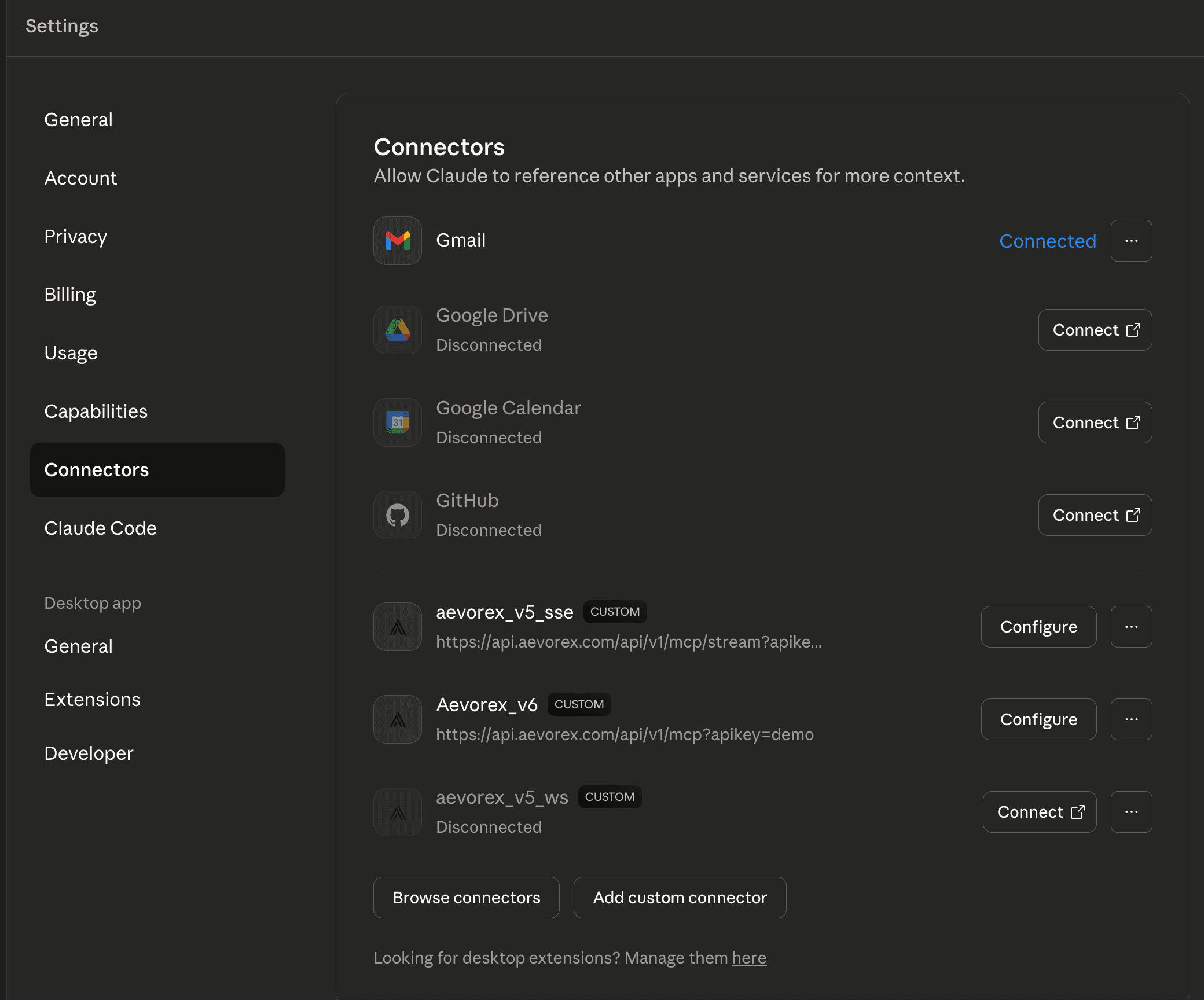
Step 3: Connect to Connectors
Open the Connectors settings page to manage integrations.
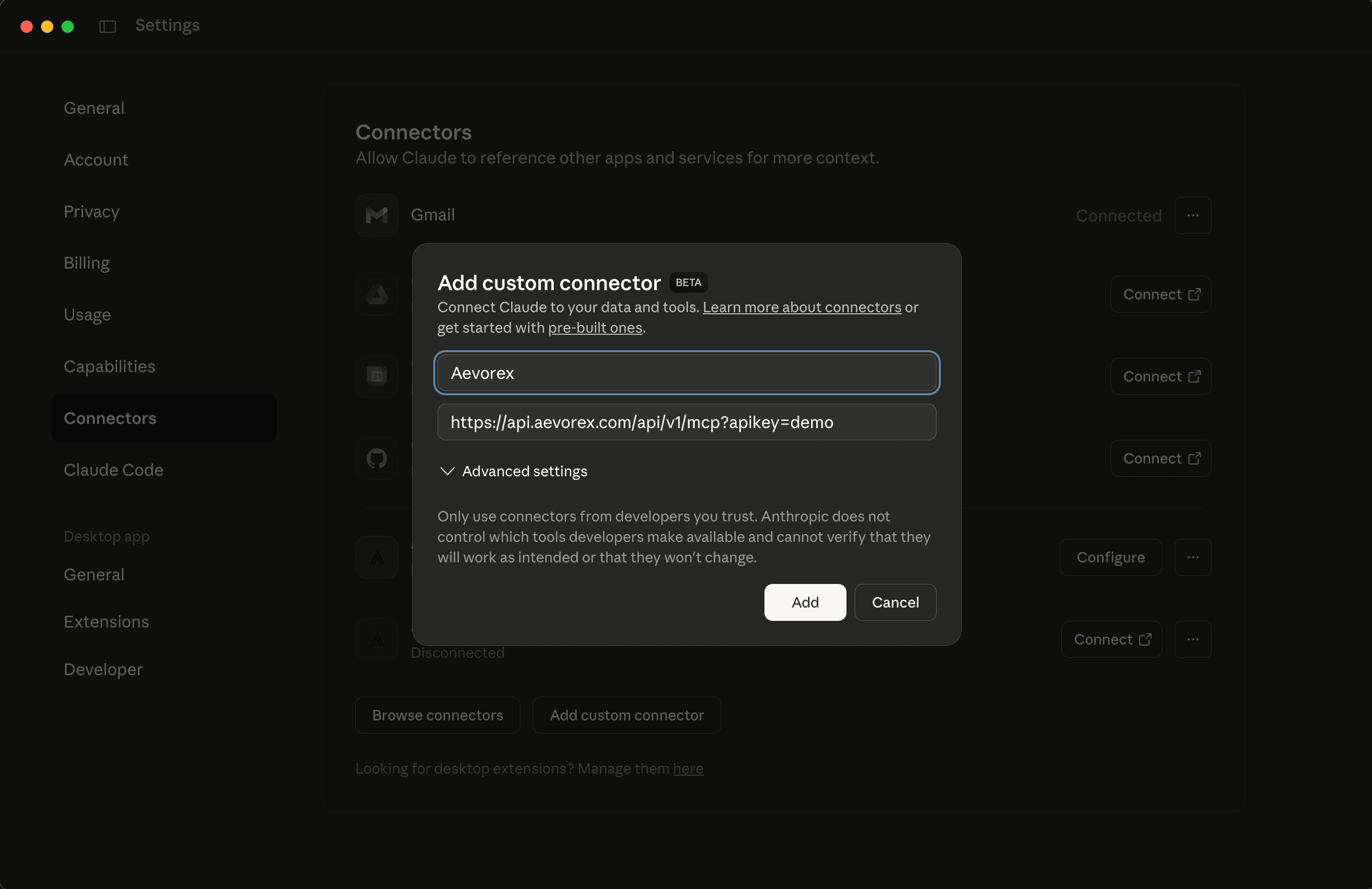
Step 4: Add Custom Connector
Click the "Add custom connector" button to start the setup.
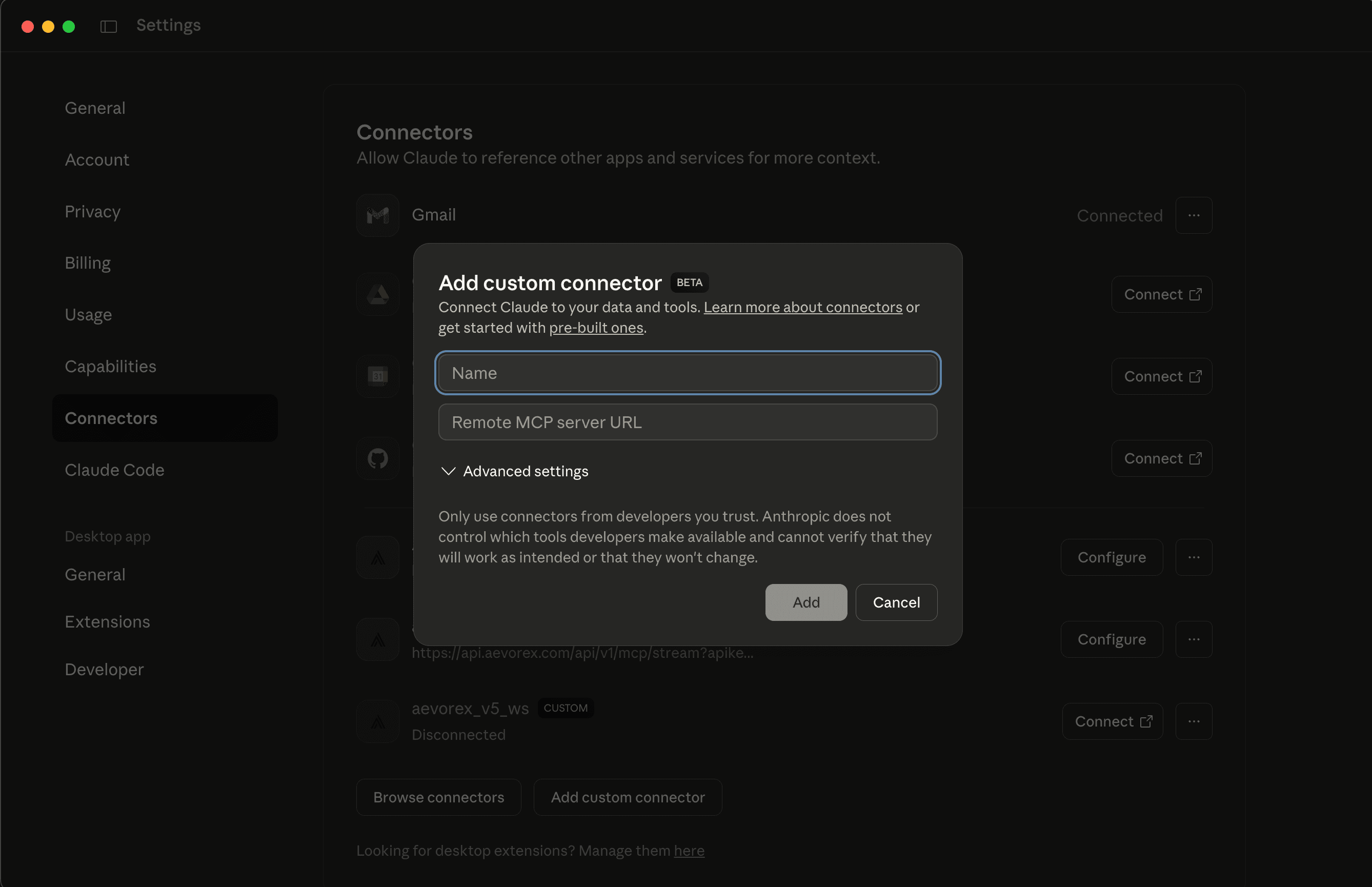
Step 5: Configure Aevorex Details
Set Name to "Aevorex" and URL to https://api.aevorex.com/api/v1/mcp?apikey=demo.
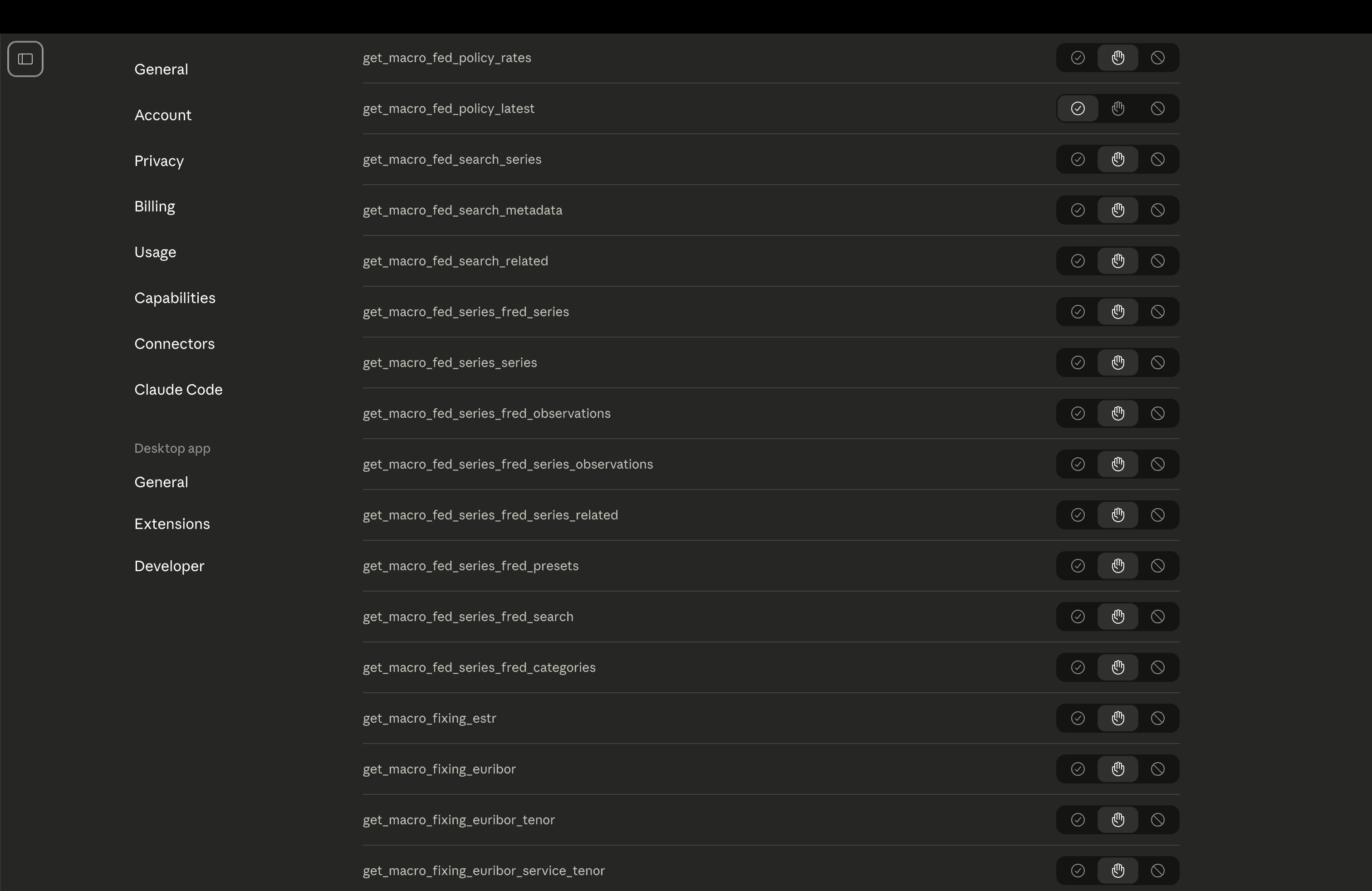
Step 6: View Connector Settings
Confirm Aevorex appears in your connector list with all actions.
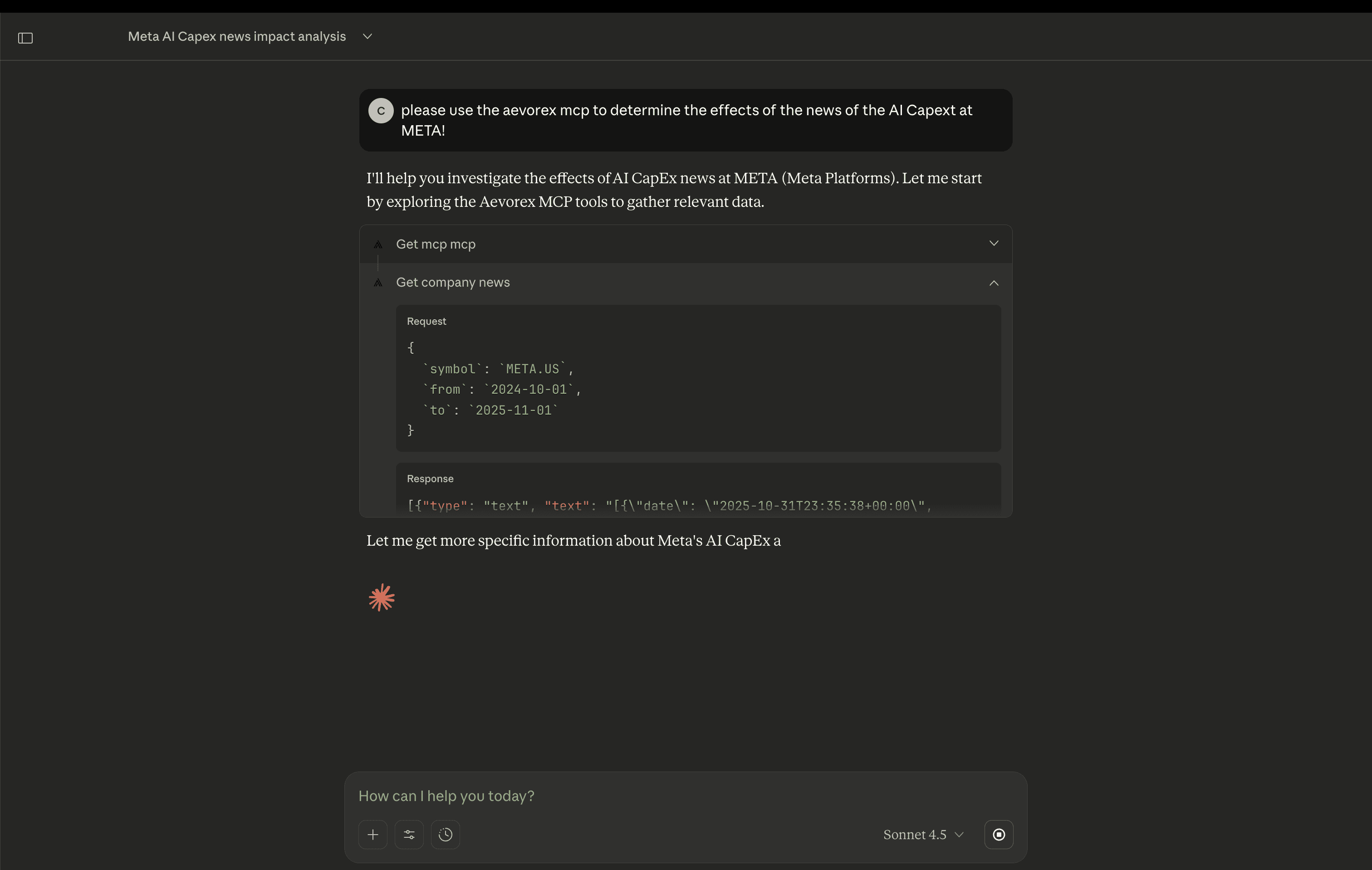
Step 7: Start Using Aevorex
You can now call Aevorex tools directly from Claude Desktop.
Setup Summary
- Open Claude Desktop → Profile → Connectors
- Click "Add custom connector"
- Name it "Aevorex"
- Use the URL above (demo API key)
- Save and start querying financial data